Installation Steps
The whole process takes less than 5 minutes. Here is how to get started.
-
Choose a server. Pick a machine to host Telebugs (cloud or local). I recommend DigitalOcean (see the DigitalOcean setup guide) or Hetzner (see the Hetzner setup guide).
-
Point your domain. Update your DNS records so your domain points directly to your server IP. Do not use proxying. Telebugs handles TLS itself.
If a reverse proxy or Cloudflare Tunnel handles HTTPS, use local HTTP mode instead: leave the domain prompt blank during setup. The direct DNS requirement above does not apply to that mode.

-
Connect to your server. Use SSH or your provider console.
-
Run the installation command. Copy the command from your purchase email and paste it into the server terminal. Installation can take up to 5 minutes.
Your personal command will look similar to this:
bash -c "$(curl --disable -fsSL https://license.telebugs.com/install/a12b-c34d-e56f-g78h)"Important: Keep your install command private. Do not share it or post it online. It is tied to your account and license. The purchase token is included in your email.
Already purchased Telebugs? Keep using the exact command and key in your email.
Earlier Auth commands and Licensing’s install.sh command remain supported;
there is no need to exchange your key or reinstall an existing server.
When you run this command, it will automatically install Docker on your server (assuming you’re using Linux, which is standard for most cloud environments). It will then download the newest Telebugs version covered by your purchase as a Docker container. During setup, you’ll be prompted to enter your domain name so we can generate a TLS certificate for you.
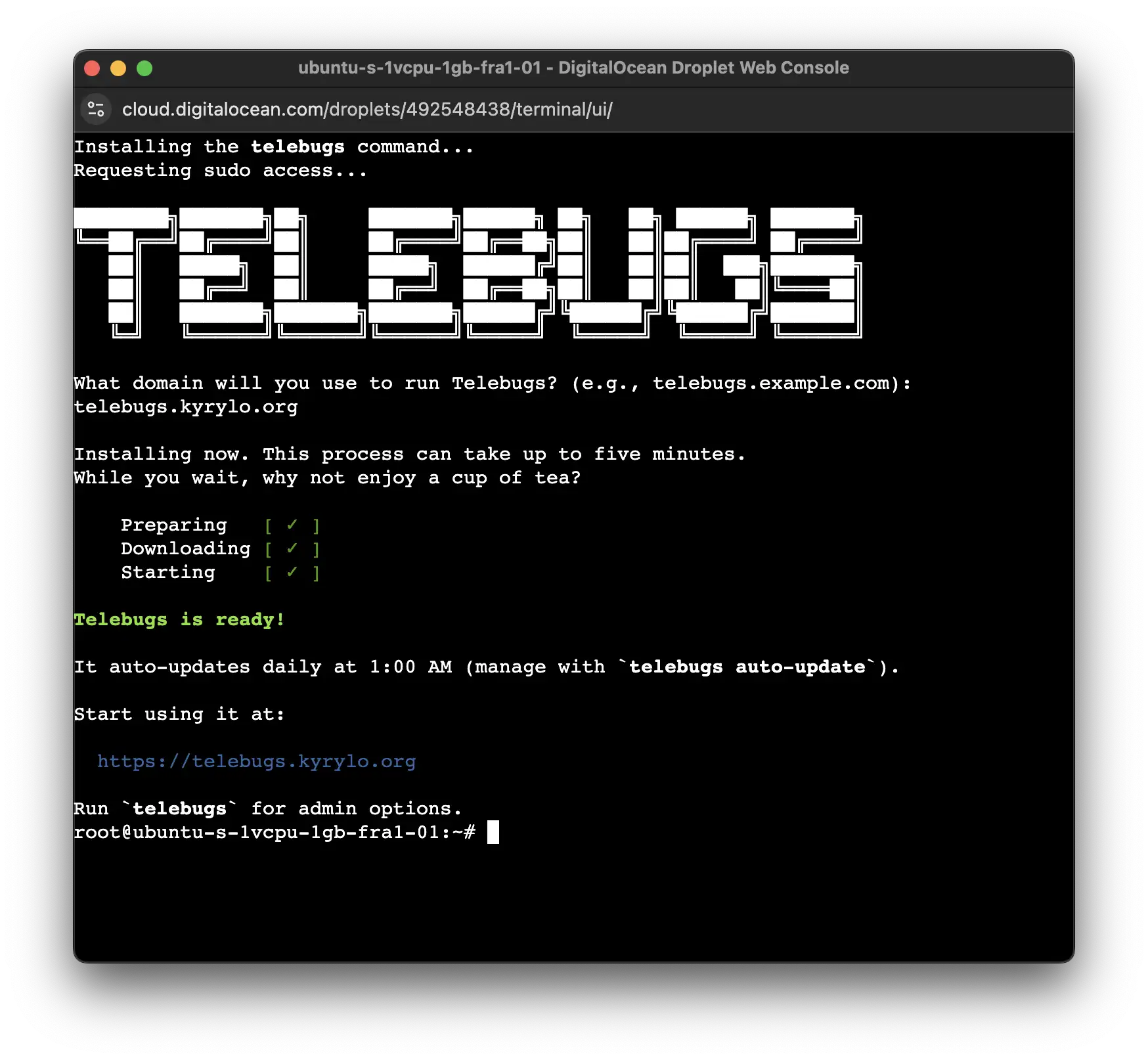
That is it. Visit https://YOUR-DOMAIN in your browser to create the first
user. After that, you can invite your team.
On Linux, Telebugs updates itself automatically every night at 1 AM (server local time).
You can disable updates or run other admin tasks (backups, password resets,
etc.) with the telebugs command. Connect to your server and run telebugs
to see all options. New purchases include one year of updates and support,
renewing at $99/year unless cancelled. Covered versions keep working and remain
available for download after coverage ends; later releases require renewed
coverage. Existing Auth customers retain their original license terms.
After first launch, run telebugs status on the server. Before sending
production errors, create an off-server backup and restore plan and decide
whether your external monitoring should check /ready.
💡 Want multiple Telebugs installations? You need a separate license for each domain.
Installing on a Mac
Start your existing Docker environment, such as Colima or Docker Desktop, before
running the installation command. Run it from your usual Mac account. The
installer asks for administrator permission only to install the CLI; setup and
later telebugs commands use your account’s Docker context.
For a new Licensing installation, use the /install/YOUR-LICENSE-KEY command
shown above with your existing key, including an older TLB-SH- key. Leave the
domain blank when using Cloudflare Tunnel or another reverse proxy.
New Mac installations store data in ~/.local/share/telebugs. Run management,
backup and restore commands from the same Mac account. To update, run
telebugs update; automatic scheduling is not enabled on macOS.
Replacing or Recovering an Existing Server
Do not follow the normal installation steps or run telebugs setup on a
replacement server. Install only the recovery CLI:
bash -c "$(curl --disable -fsSL https://license.telebugs.com/restore)"
Then copy your backup, run telebugs data verify, and follow the
backup and restore runbook. Restore uses the exact licensed domain captured
in the archive. The runbook covers format-1 authorization, format-2 offline
receipts, Docker and registry requirements, local checks, direct DNS cutover,
ports 80/443, TLS, and rollback.